
24 Jul Creative Uses for iPhone NFC Tags in a Smart Home
The rise of smart home technology has transformed how we interact with our living spaces, making them more convenient, efficient, and personalized. Among the tools driving this revolution are Near Field Communication (NFC) tags, which iPhone users can leverage to automate tasks and enhance their smart home experience. These small, programmable chips enable seamless communication between your iPhone and smart home devices, offering endless possibilities for customization. For those looking to explore innovative tech solutions, companies like Ltech UK provide resources and guides to integrate cutting-edge technologies, including NFC, into your home setup. This article explores creative ways to use iPhone NFC tags in a smart home, ensuring a people-first approach with practical, user-friendly ideas.
What Are NFC Tags and How Do They Work with iPhones?
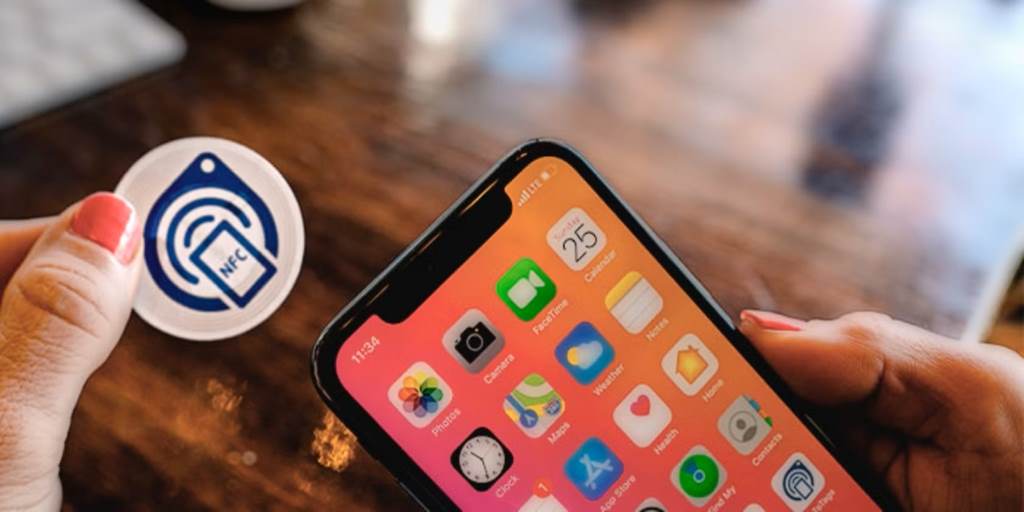
NFC tags are small, inexpensive stickers or chips that can store data and trigger actions when scanned by an NFC-enabled device, such as an iPhone (models starting from iPhone 7 with iOS 11 or later). By programming these tags using apps like Apple’s Shortcuts or third-party apps like NFC Tools, users can automate tasks with a simple tap. For instance, tapping an NFC tag can turn on lights, adjust a thermostat, or send a text. While NFC tags are versatile, some users wonder about running other types of applications on iOS. For example, learning how to run apks on iOS can expand device functionality, though NFC automation remains a simpler and native solution for iPhone users.
Creative Uses for NFC Tags in a Smart Home
Here are some innovative ways to incorporate NFC tags into your smart home, making daily routines more efficient and enjoyable:
- Morning Routine Automation: Place an NFC tag by your bedside table. Program it to trigger a morning routine when tapped, such as turning on the coffee maker, opening smart blinds, and playing your favorite morning playlist. This single tap can kickstart your day without needing to open multiple apps.
- Guest Mode Activation: Create a welcoming environment for guests by placing an NFC tag near your front door. When scanned, it can turn on guest Wi-Fi, dim the lights for a cozy ambiance, and play soft background music. This is especially useful for frequent hosts who want to impress visitors effortlessly.
- Energy-Saving Mode: Stick an NFC tag near your home’s exit. Tapping it can activate an energy-saving mode, turning off all smart lights, lowering the thermostat, and locking smart doors. This ensures you save energy when leaving the house without manually adjusting each device.
- Work-from-Home Setup: For remote workers, an NFC tag on your desk can switch your iPhone to Do Not Disturb mode, turn on a smart desk lamp, and open productivity apps like Notion or Slack. This creates an instant, distraction-free workspace with one tap.
- Movie Night Mode: Place an NFC tag on your coffee table to trigger a movie night setup. It can dim the living room lights, lower the smart blinds, and launch a streaming app like Netflix on your Apple TV. Pair this with a smart speaker for an immersive experience.
- Pet Care Automation: Simplify pet care by placing an NFC tag near your pet’s feeding area. A tap can dispense food through a smart pet feeder, play a calming sound for your pet, or send a notification to a family member to check on them.
- Fitness Zone Activation: Transform your workout space by using an NFC tag to start a fitness routine. Scanning it can play an upbeat workout playlist, turn on a smart fan, and open a fitness app like Apple Fitness+ to track your session.
These ideas showcase the versatility of NFC tags, making them a game-changer for smart home enthusiasts. By combining creativity with technology, you can tailor your home to fit your lifestyle.
How to Set Up NFC Tags for Your Smart Home
Setting up NFC tags is straightforward and requires minimal technical expertise. First, purchase NFC tags (NTAG213 or NTAG215 are compatible with iPhones). Next, download a free app like Shortcuts (pre-installed on iPhones) or NFC Tools from the App Store. Then, follow these steps:
- Open the Shortcuts app and create a new automation.
- Select “NFC” as the trigger and scan your tag to link it.
- Add actions like controlling smart devices, sending messages, or opening apps.
- Save the automation and test it by tapping the tag with your iPhone.
Ensure your iPhone’s NFC reader is enabled (it’s on by default in the background for iPhone XS and later). For inspiration, check out resources from authoritative sites like Apple’s Shortcuts User Guide for advanced automation tips.
Tips for Maximizing NFC Tag Efficiency
To get the most out of NFC tags, consider these practical tips:
- Strategic Placement: Place tags in intuitive locations, such as near light switches or on keychains, for easy access.
- Clear Labeling: Use stickers or markers to label tags (e.g., “Morning Routine” or “Movie Mode”) to avoid confusion.
- Regular Updates: Reprogram tags as your smart home evolves or your routines change to keep them relevant.
- Backup Automations: Save your Shortcuts automations to iCloud to avoid losing them if you switch devices.
Additionally, test your tags periodically to ensure they work seamlessly with your smart home ecosystem, especially after iOS updates.
Read Also:
Pros And Cons of Building a Gaming PC: Mastering Your Setup
How to Boost Performance: Change Refresh Rate on MSI Monitor!
Benefits of Using NFC Tags in a Smart Home
NFC tags offer several advantages for smart home users. First, they are affordable, with tags costing as little as $1 each when bought in bulk. Second, they require no batteries or maintenance, making them a low-effort solution. Third, they work offline, so you don’t need an internet connection for most automations. Finally, they integrate seamlessly with Apple’s HomeKit, allowing you to control devices like Philips Hue lights or Ecobee thermostats. For more insights on smart home integration, visit CNET’s Smart Home Guide.
However, NFC tags have limitations. They require physical contact, so you can’t trigger them remotely, and their range is limited to a few centimeters. Despite this, their simplicity and reliability make them a valuable addition to any smart home.
FAQs
How Do NFC Tags Differ from QR Codes in Smart Homes?
NFC tags require a tap to trigger actions and work without an internet connection, while QR codes need to be scanned visually and often rely on online links. NFC is faster and more discreet for smart home automation.
Can Android Users Use the Same NFC Tags as iPhone Users?
Yes, most NFC tags (like NTAG213) are compatible with both iPhone and Android devices, though the programming apps and automation processes may differ.
Do NFC Tags Work with All Smart Home Devices?
NFC tags work with devices compatible with your iPhone, such as those integrated with Apple HomeKit. Ensure your smart devices support iOS automation for full functionality.
Are NFC Tags Secure for Smart Home Use?
NFC tags are generally secure due to their short range and encrypted data. However, avoid sharing sensitive automations, and reprogram tags if you suspect tampering.
How Many NFC Tags Can I Use in My Home?
There’s no limit to the number of NFC tags you can use. Each tag can store unique automations, allowing you to customize as many tasks as needed.
Conclusion
iPhone NFC tags offer a simple yet powerful way to enhance your smart home, streamlining daily tasks and adding a touch of personalization. From automating morning routines to creating a movie night atmosphere, these tiny chips unlock endless possibilities. By integrating them with Apple’s Shortcuts and HomeKit, you can create a seamless, efficient home environment tailored to your needs. Start experimenting with NFC tags today to discover how they can transform your smart home experience.
No Comments