
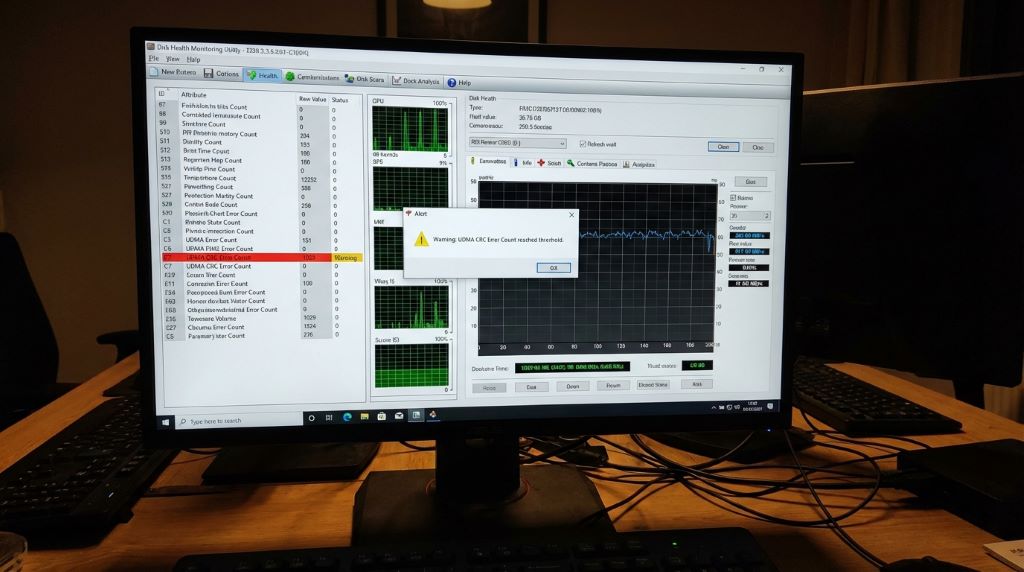
25 Mar How to Fix UDMA CRC Error Count: The Complete Troubleshooting & Prevention Guide
Hard drives and SSDs are supposed to be silent workhorses in the background of your system. But when you suddenly see UDMA CRC error count climbing in your SMART data, it can feel like a ticking time bomb. Is your drive failing? Is your data at risk? Should you replace the disk immediately?
Here is the good news: in most cases, a high UDMA CRC error count does not mean your drive is dying. It means your system is having trouble communicating with it. And that is usually something you can fix.
This in-depth guide will explain what UDMA CRC errors are, why they happen, how to fix them step by step, and how to stop them from coming back. Whether you are a home PC user, a gamer, or managing business servers, this article gives you everything you need to solve the problem confidently.
What Is UDMA CRC Error Count?
UDMA CRC error count is a SMART (Self-Monitoring, Analysis, and Reporting Technology) attribute used by hard drives and SSDs to track data transmission errors between the storage drive and the motherboard.
UDMA stands for Ultra Direct Memory Access, a protocol that allows drives to transfer data directly to system memory without involving the CPU. CRC stands for Cyclic Redundancy Check, which is a method used to verify that data is transmitted correctly.
When a CRC error occurs, it means the drive sent data, but the system received it with errors. The drive then retransmits the data. The system continues working, but the SMART counter increases.
Important:
CRC errors usually point to signal integrity problems, not internal disk failure.
Why Is UDMA CRC Error Count Important?
This metric matters because persistent CRC errors can:
- Slow down disk performance
- Cause system freezes or timeouts
- Lead to file corruption if errors become severe
- Indicate unstable hardware connections
However, unlike reallocated sectors or pending sectors, CRC errors do not indicate damaged storage media. They indicate communication problems between the drive and the system.
This distinction is critical when deciding whether to repair or replace hardware.
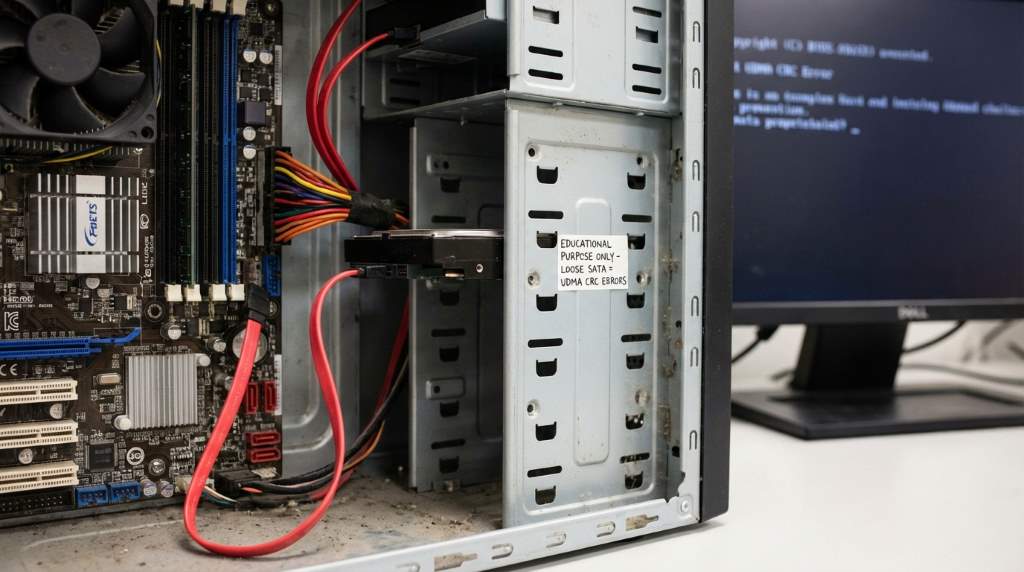
Common Causes of UDMA CRC Errors
Understanding what causes UDMA CRC error count spikes helps you fix the problem permanently.
- Faulty or Loose SATA Cables
The number one cause of CRC errors is bad SATA cables. Even slight shielding issues, pin misalignment, or bending can introduce data transmission errors.
- Poor Power Connections
If the drive is not receiving stable power, data signals can become corrupted.
- Dust and Oxidation
Dirty or oxidized SATA ports and connectors interfere with electrical signals.
- Electromagnetic Interference
Running SATA cables near power cables, GPUs, or fans can create electrical noise.
- Controller or Port Issues
A damaged SATA port on the motherboard or a failing SATA controller can generate CRC errors.
- Firmware or Driver Conflicts
Outdated BIOS, chipset drivers, or SSD firmware can mismanage data transfers.
How to Check UDMA CRC Error Count
You can view this SMART attribute using disk monitoring tools such as:
- CrystalDiskInfo
- Hard Disk Sentinel
- smartctl (Linux)
- HWiNFO
Look for SMART attribute 199 – UDMA CRC Error Count.
What matters is:
- If the number is increasing
- How fast it is increasing
A static number means the issue happened in the past and is no longer active.
How to Fix UDMA CRC Error Count (Step-by-Step)
Step 1 – Power Down and Unplug
Turn off your system and disconnect it from power before touching any internal components.
Step 2 – Replace the SATA Cable
This is the single most effective solution.
- Use a new, high-quality SATA III cable
- Avoid cheap, thin, or excessively long cables
- Use locking SATA cables if possible
Reconnect the drive firmly on both ends.
Step 3 – Change SATA Port
Move the cable to a different SATA port on the motherboard. This helps rule out a faulty port or controller lane.
Step 4 – Check Power Cable
If your power supply has multiple SATA power connectors, try a different one.
Avoid using splitters if possible.
Step 5 – Clean the Ports
Use compressed air to remove dust from:
- SATA ports
- Drive connectors
If oxidation is visible, use electrical contact cleaner carefully.
Step 6 – Improve Cable Routing
Keep SATA cables away from:
- GPU power cables
- Fans
- High-current wires
Electromagnetic interference can create CRC errors.
Step 7 – Update BIOS and Drivers
Update:
- Motherboard BIOS
- SATA controller drivers
- Chipset drivers
For SSDs, update firmware using the manufacturer’s utility.
Step 8 – Monitor After the Fix
Reset or note the current udma crc error count, then monitor it for several days.
If it stops increasing, the issue is resolved.
Should You Replace the Drive?
In most cases, no.
CRC errors do not indicate bad sectors or failing NAND. They indicate data transmission problems. If:
- Reallocated sectors are zero
- Pending sectors are zero
- Read/write speeds are normal
Then the drive itself is healthy.
You only need to replace the drive if other SMART attributes show degradation.
How to Prevent UDMA CRC Errors in the Future
Preventive maintenance can eliminate CRC errors long-term.
- Use quality SATA cables
- Avoid bending or stretching cables
- Keep your PC clean and dust-free
- Ensure stable power supply
- Avoid excessive vibration
- Keep firmware and BIOS up to date
These best practices apply to desktops, servers, and NAS systems alike.
UDMA CRC Errors in SSDs vs HDDs
Both SSDs and HDDs can show CRC errors, but the cause is the same: communication problems.
SSDs are more sensitive to:
- Power instability
- Firmware issues
HDDs are more sensitive to:
- Vibration
- Cable quality
The troubleshooting process remains the same for both.
How CRC Errors Affect Performance
Every CRC error forces the drive to retransmit data. This results in:
- Slower file transfers
- Lag during disk access
- Occasional system stutters
Over time, heavy CRC errors can make a fast SSD feel sluggish.
When CRC Errors Become Dangerous
While CRC errors themselves are not data loss indicators, they can become dangerous if they:
- Cause repeated I/O timeouts
- Interrupt critical write operations
- Lead to system crashes
This is why fixing them quickly is important.
Related:
How to Structure PHP Projects for Beginners: The Ultimate Guide to Writing Clean, Scalable Code
How to Build a Dynamic Website Using PHP: The Ultimate 2026 Guide
Frequently Asked Questions (FAQs)
What is a normal UDMA CRC error count?
Zero is ideal. A few errors in the past are not a concern as long as the number does not keep increasing.
Can CRC errors cause data loss?
Not directly. Data is retransmitted when an error occurs. However, severe communication failures can lead to file corruption in rare cases.
Should I reset the CRC counter?
Some tools allow it, but it is better to note the value and watch if it increases after repairs.
Is UDMA CRC error count a sign of drive failure?
No. It is a sign of connection or communication problems, not disk media failure.
Do USB external drives get CRC errors?
Yes, but they are logged differently. USB cable issues can create similar data transmission errors.
Can overheating cause CRC errors?
Indirectly. Heat can degrade cable insulation and electronics, increasing transmission errors.
Does a new SATA cable always fix CRC errors?
In most cases, yes. Over 80% of CRC error problems are caused by bad cables.
Final Thoughts
A rising UDMA CRC error count can be alarming, but it is one of the most fixable SMART warnings you can encounter. By replacing cables, securing connections, updating firmware, and cleaning your system, you can eliminate these errors and restore full performance without replacing your drive.
If you want a deeper technical breakdown, professional troubleshooting steps, and visual examples, visit this complete resource on udma crc error count at:
https://ltechuk.com/udma-crc-error-count-a-beginners-guide-to-troubleshooting/
Check your SMART data, replace any questionable cables, and stop CRC errors before they impact your system’s stability and performance.
No Comments