
27 Sep How to Optimize Your Home Network for Multiple Connected Devices
Two people streaming in 4K, a video call running in the background, a console downloading a 60 GB update, and a dozen smart plugs quietly chattering away — that is a normal evening in most homes now, and it is why a connection that felt fast two years ago suddenly feels sluggish. The bottleneck is rarely your internet speed alone. It is usually how your network handles many devices competing at once. Fixing that comes down to placement, band management, router settings, and knowing when your hardware has hit its ceiling. If you are considering a mesh upgrade, click here to read a closer look at the Amazon eero 6 mesh Wi-Fi system and what it handles well. Below is a practical order of operations, starting with the fixes that cost nothing.
Quick Answer
Optimize in this order: move the router to a central, elevated, open spot; split or steer devices between 2.4 GHz and 5 GHz based on their needs; enable QoS or SQM if your router supports it; update firmware; wire anything stationary that can be wired; and only then consider adding mesh nodes or access points. Most households with 20–40 devices do not need a faster plan — they need better distribution, less interference, and fewer devices fighting over the same congested channel.
Key Takeaways
- Device count matters less than what those devices are doing. Ten idle smart bulbs use less airtime than one 4K stream.
- 2.4 GHz travels farther but is crowded; 5 GHz is faster but shorter-range. Putting the right device on the right band is often the single biggest improvement.
- Anything that stays in one place and has an Ethernet port — a TV, console, desktop, or mesh node — should be wired if you can reach it.
- Wi-Fi extenders repeat a weak signal and typically cut throughput; mesh nodes with a dedicated backhaul or a wired connection perform far better.
- Channel congestion from neighbors is real, especially in apartments. Switching channels manually can beat any router’s “auto” mode.
Start With Bandwidth Math, Not Device Count
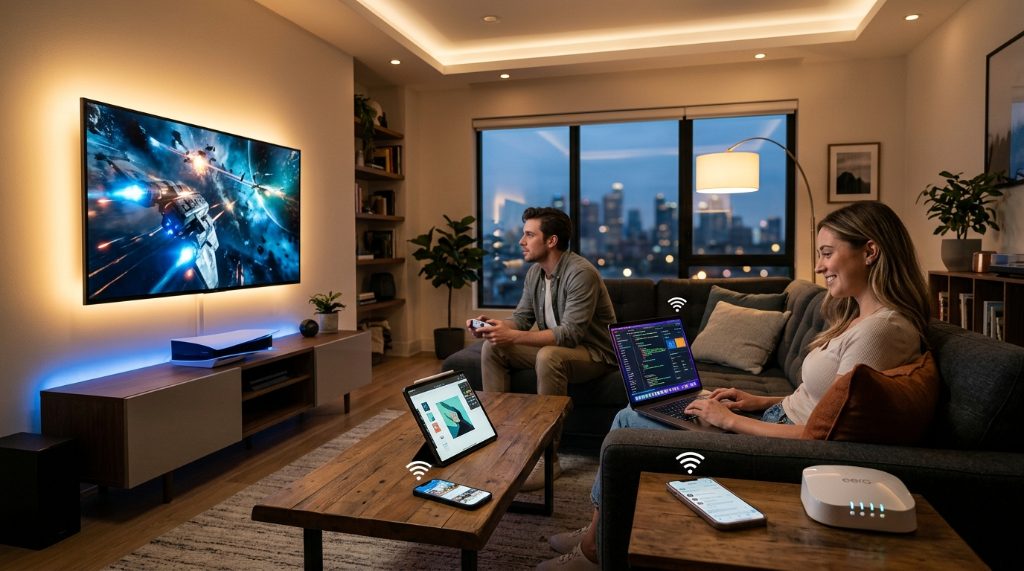
Before buying anything, estimate what your household actually consumes at peak. A 4K stream generally needs roughly 15–25 Mbps, HD streaming around 5 Mbps, a 1080p video call about 3–4 Mbps, and online gaming only 1–3 Mbps for the game itself — though game downloads and updates can saturate a connection for hours.
Add those up for the devices that run simultaneously, not for every device you own. A 300 Mbps plan comfortably handles several 4K streams plus calls and browsing. If your peak demand sits well under your plan’s speed, upgrading your internet package will not fix lag. The problem is local: Wi-Fi airtime, interference, or a router that cannot keep up with many simultaneous connections.
Where routers actually struggle
Consumer routers handle a handful of active devices well. The strain appears when 30+ devices maintain connections at once, even if most are idle, because each one consumes memory and periodic airtime for beacons and keep-alives. Older routers with limited RAM and single-core processors start dropping packets or delaying responses. That is a hardware limit, not a speed limit, and no plan upgrade solves it.
Placement: The Free Fix Most People Skip
Wi-Fi is radio, and radio behaves predictably. Put the router in the middle of the space you want covered, at roughly chest height or higher, and out of enclosed furniture. Avoid these common placement mistakes:
- Inside a media cabinet, closet, or behind a TV — metal and dense wood absorb signal.
- Next to a microwave, cordless phone base, or baby monitor, all of which can interfere with 2.4 GHz.
- On the floor, where furniture and walls block the strongest part of the radiation pattern.
- Against an exterior wall, wasting half your coverage outdoors.
If your router has external antennas, orient them vertically for single-floor coverage. For a two-story home, angling one antenna horizontally can help push signal up or down, though the gain is modest.
Bands, Channels, and Channel Width
Most home networks run on 2.4 GHz and 5 GHz. Wi-Fi 6E adds a 6 GHz band with far more clean spectrum, but only newer devices can use it.
2.4 GHz versus 5 GHz
2.4 GHz penetrates walls better and reaches farther, but it has only three non-overlapping channels (1, 6, and 11) in most regions. In an apartment building, those three channels may be shared with a dozen neighboring networks. 5 GHz offers many more channels and higher throughput but loses strength faster through obstacles.
Practical assignment: put smart plugs, bulbs, sensors, and older IoT gear on 2.4 GHz. Put laptops, phones, TVs, and consoles on 5 GHz. If your router combines both bands under one name, band steering decides for you — and it does not always decide well. Separating the SSIDs gives you manual control, at the cost of reconnecting devices once, Dealing with frustrating lag while trying to stream or work remotely? Make sure to check out our guide on how to stop device slowdowns in miami, fl to keep your local connection running at peak performance.
Channel width trade-offs
Wider channels (80 MHz or 160 MHz on 5 GHz) deliver higher peak speeds but occupy more spectrum and are more likely to overlap with neighbors. In a dense environment, dropping to 40 MHz often produces more consistent performance even if a speed test shows a lower peak.
Router Settings Worth Changing
These settings deliver measurable improvements on most routers:
- Update firmware. Vendors fix stability and security issues regularly. Check quarterly.
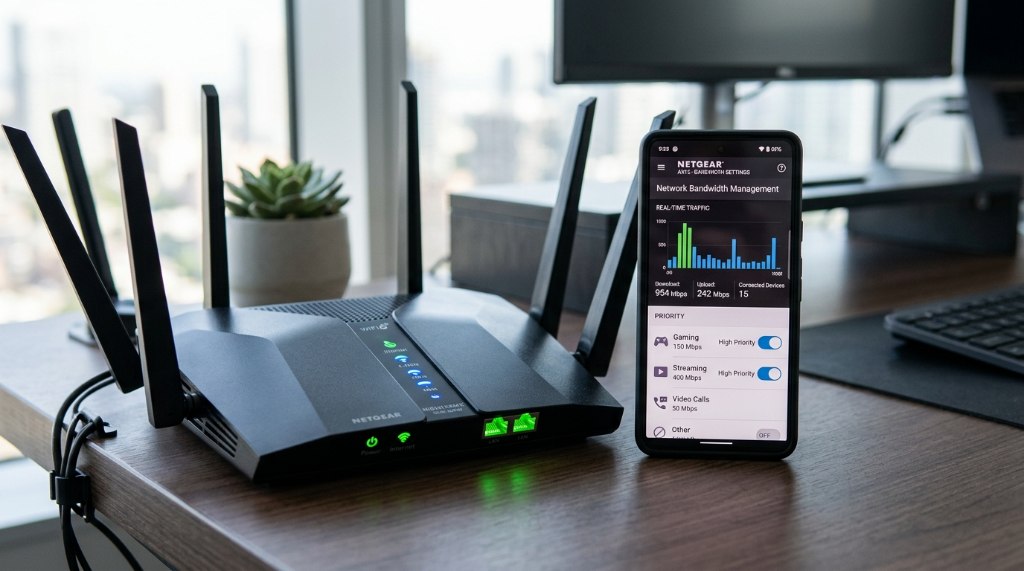
- Enable QoS or SQM. Quality of Service prioritizes latency-sensitive traffic like calls and gaming. SQM (smart queue management) is better still if your router supports it, because it prevents bufferbloat — the lag that builds when one device saturates your upload.
- Set a manual channel. Use a Wi-Fi analyzer app to see which channels neighbors occupy, then pick the least crowded one.
- Disable legacy modes if you have no very old devices. Running 802.11b/g compatibility can slow the entire 2.4 GHz band.
- Create a guest network for visitors and untrusted IoT devices. It isolates them from your main devices and reduces clutter on your primary SSID.
- Turn off WPS and remote administration if you are not using them.
Mesh, Extender, or Access Point: Which Actually Helps?
If coverage is the problem rather than capacity, you need more radios — but not all solutions are equal. This table summarizes the realistic trade-offs.
| Approach | How it works | Best for | Main trade-off |
|---|---|---|---|
| Wi-Fi extender | Receives and rebroadcasts the existing signal | One dead zone, tight budget | Typically halves throughput at the extended point and can add latency |
| Mesh system | Multiple nodes cooperate as one network with seamless roaming | Whole-home coverage, many devices, easy management | Wireless backhaul consumes airtime unless a dedicated band or cable is used |
| Wired access point | Ethernet-connected radio broadcasting the same SSID | Homes with existing cabling | Requires a cable run and some configuration |
| Powerline or MoCA adapter | Sends network data over electrical wiring or coax | Hard-to-reach rooms without Ethernet | Performance depends heavily on your home’s wiring quality |
Mesh is the most common upgrade for busy households because it handles roaming and device management automatically. The catch is placement: nodes too far apart communicate poorly, and nodes too close together waste spectrum. Aim for no more than one to two rooms between nodes, and wire them if you can.
Wire Everything That Stays Still
Every device you move off Wi-Fi frees airtime for the devices that genuinely need it. Ethernet is still the fastest, most reliable, and lowest-latency option, and it costs far less than a mesh upgrade.
Prioritize wiring in this order: mesh nodes or access points, desktop computers, game consoles, smart TVs and streaming boxes, and any work-from-home setup. If running cable is impractical, MoCA adapters over existing coax often outperform powerline adapters by a wide margin.
Common Mistakes That Undo Your Work
- Buying a faster plan first. If your Wi-Fi delivers 200 Mbps to a device on a 1 Gbps plan, the plan is not the limit.
- Stacking extenders. Chaining two or three repeaters multiplies latency and halves throughput at each hop.
- Hiding the router. Aesthetic placement is the most common cause of poor coverage.
- Ignoring the upload side. Video calls and cloud backups depend on upload speed, which is often far lower than download.
- Never rebooting. A monthly restart clears memory leaks and stale connections on many consumer routers.
Frequently Asked Questions
How many devices can one router handle?
There is no fixed number, because it depends on the router’s processor, memory, and how many devices are actively transmitting. Many modern routers manage 30–50 connected devices reasonably well, but performance degrades when many are actively streaming or downloading at once. If you routinely exceed that, a mesh system or a router with more processing power helps more than a faster internet plan.
Does more internet speed fix lag when many devices are connected?
Usually not. Lag with many devices is typically caused by Wi-Fi airtime contention or bufferbloat, not raw bandwidth. Enabling QoS or SQM and moving heavy devices to Ethernet addresses the actual cause far more effectively than upgrading your plan.
Should I separate my 2.4 GHz and 5 GHz networks?
Separating them gives you manual control and is useful if you have devices that stubbornly connect to the slower band. Keeping them combined is more convenient and lets band steering manage roaming. Either approach works — the deciding factor is whether you want to assign devices yourself.
Is Wi-Fi 6 worth upgrading to for a busy home?
Wi-Fi 6 improves efficiency when many devices share the network, thanks to features like OFDMA and better scheduling. It helps most in crowded environments or homes with dozens of devices. If you have fewer than 15 devices and no congestion problems, the benefit will be modest, and your devices must also support Wi-Fi 6 to see the full gain.
Why does my Wi-Fi slow down in the evening?
Two things happen at once: your household’s peak usage overlaps, and your neighbors’ networks are also busy, increasing interference on shared channels. A manual channel change, wired connections for heavy devices, and QoS settings usually reduce the impact noticeably.
Conclusion
Optimizing a home network for many devices is mostly about distribution and discipline, not spending. Move the router to a better spot, assign devices to the right band, enable QoS, update firmware, and wire anything that never moves. Those steps alone resolve most congestion complaints. Only after that should you consider mesh nodes or a new router — and if you do, place them carefully and wire the backhaul when possible. Work through the free fixes first, measure the result, then upgrade with a clear idea of what you are actually solving.
No Comments